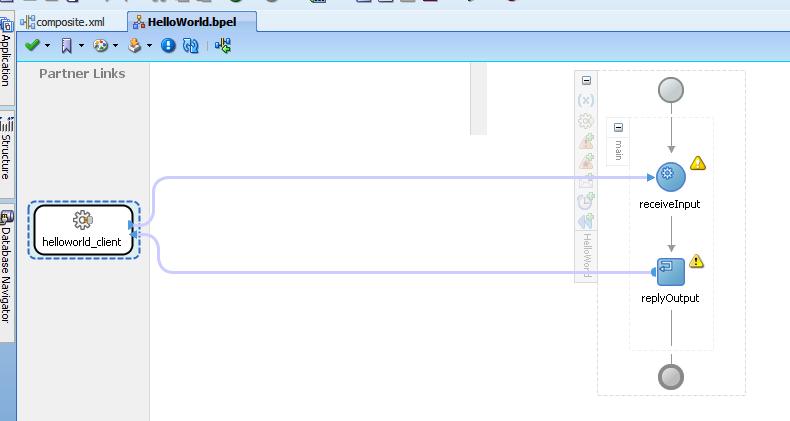
MDS is used as a repository for managing and reusing shared resources like XSD, WSDL, XSL files.
MDS should be implemented from day 1 of development otherwise developers will run into XSD mismatch, also during production it will be very tough to keep the XSD same.
The concept is very simple, rather than each project picking the xsd (any other file) from there project's 'xsd' folder, pick it from the common/shared folder.
Oracle SOA suite 11G provides Central MDS and Local MDS.
*** Ideally all the artifacts should be inside the central MDS.
We will go through step by step creating Central MDS repository for keeping XSD, use them in project and later see how to remove XSD from Central MDS.
Creating Central MDS repository for keeping XSD:
Step1.) Making MDS connection in JDeveloper
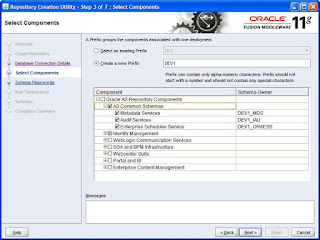
a.) Make a Database connection to MDS schema, all the XSD will get saved inside the DEV_MDS schema, this schema gets created when we run RCU.bat file, please run rcu.bat again if you have skipped it while installation.
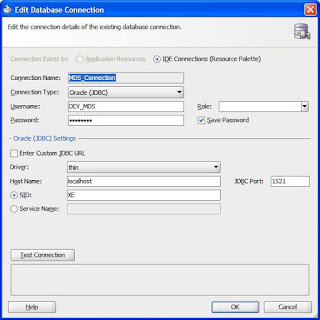
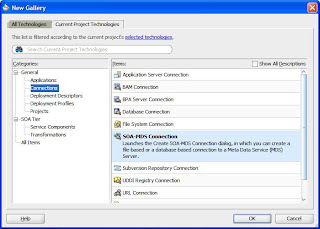
b.) Create a new MDS connection, this MDS connection is to the Database, set the Connection type as "DB based MDS", this is actually creating MDS in the SOA server which saves all the repository files in the database (DEV_MDS).
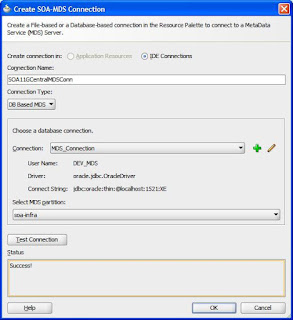
We can now browse to the MDS repository and see what are the files inside it, this is the place where where the XSD files will come up.
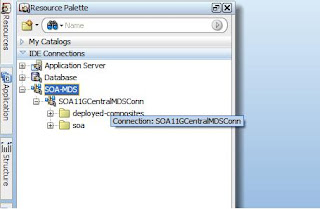
Step2.) Pick the XSD files from the local system, While doing the JDeveloper installation it create a local MDS for us which is replicated in the central MDS, we will keep the XSD files in the local directory.
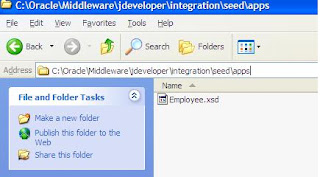
Go to this location on local system "Oracle\Middleware\jdeveloper\integration\seed\" and create a new folder in it 'apps' Oracle\Middleware\jdeveloper\integration\seed\apps
and paste all the XSD's you want to move to central MDS.
I have pasted here 'Employee.xsd'
Step3.) Create a simple JAR deployment profile that contains the artifacts,
Create a new SOA project in JDeveloper and select empty composite, double click on the project to go on the properties.
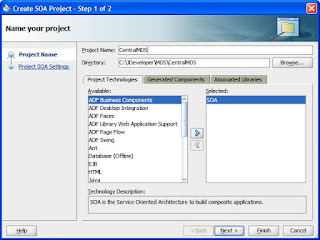
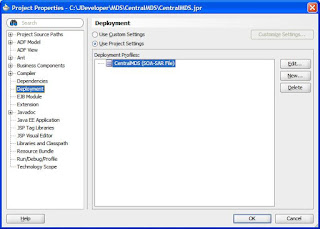
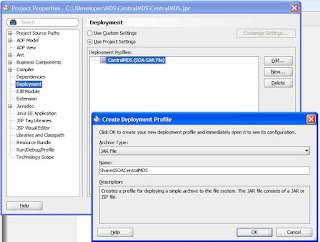
Create a new deployment profile with name "SharedSOACentralMDS" type "JAR File"
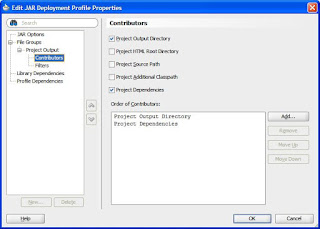
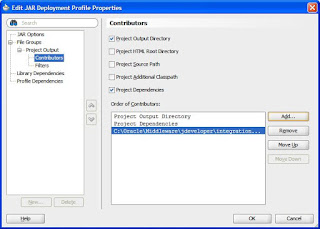
Click on contributors and add a new contributor.

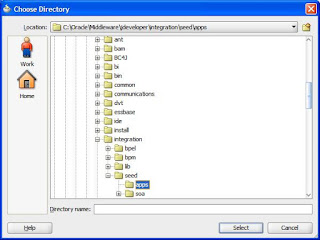
Browse for the folder "Oracle\Middleware\jdeveloper\integration\seed\apps"
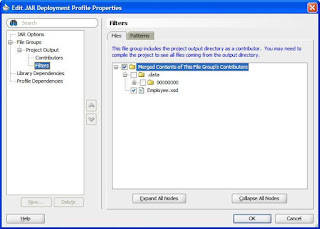
Now click on Filters to check which all files we want to put on Central MDS, this is the screen where we can decide which files will go inside the MDS
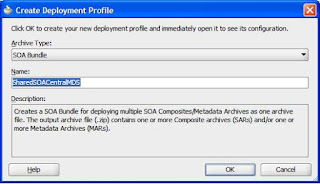
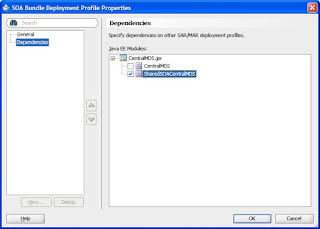
Next, we have to create a deployment profile of the type SOA Bundle at the level of the composite application.
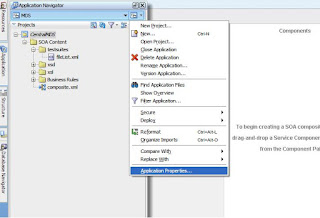
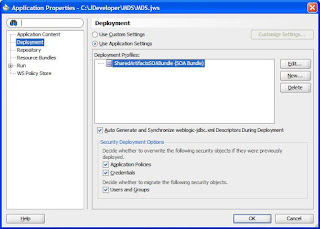
Create a new deployment profile of type "SOA Bundle" and go on dependencies
Step4.) Deployment
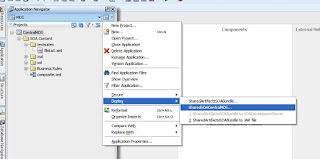
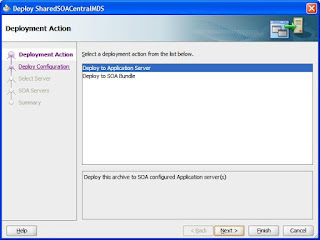
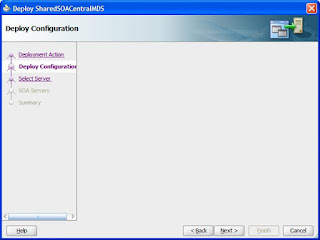
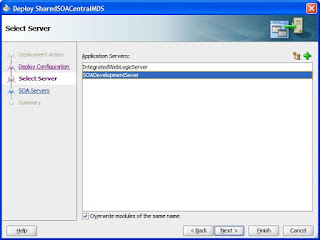
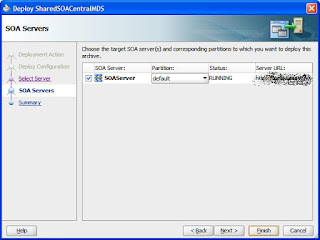
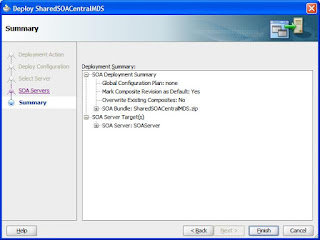
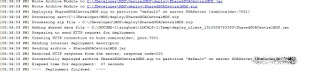
Deployment success
** If you want to use some other folder other then apps then we can add that inside Jdev adf-config.xml
Add the folder location and inside that a seed folder.

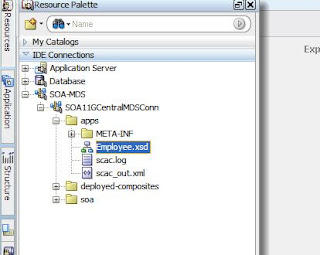
Browse through the MDS connection we created in JDeveloper
Using files from MDS in project
Create a new BPEL process by dropping a BPEL process on composite.xml
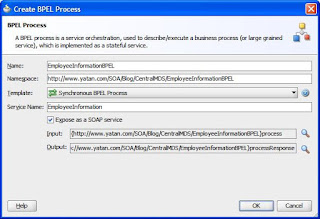
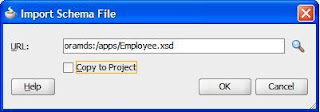
For the input and output of this process we will refer to the XSD present in the central MDS.
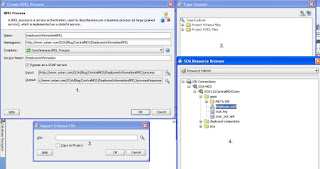
Un-check the option for "copy to project" to use it from MDS and take a look at the URL "oramds:/apps/Employee.xsd"
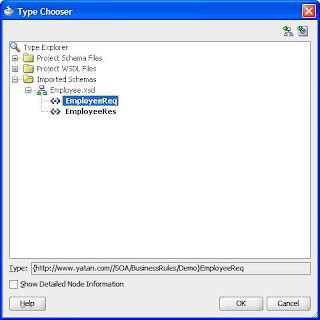
Repeat the same for output variable too.
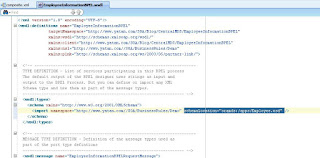
Now we will go inside the WSDL file and check what is the difference, instead of picking it from the xsd folder it is using "oramds:/apps/Employee.xsd" and picking it from the MDS
Deleting files from MDS
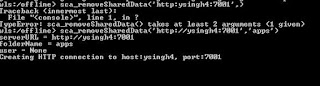
We can use Weblogic scripting tool (WLST) to delete this folder from MDS,
double click "wlst.cmd" inside C:\Oracle\Middleware\Oracle_SOA1\common\bin to start
MDS should be implemented from day 1 of development otherwise developers will run into XSD mismatch, also during production it will be very tough to keep the XSD same.
The concept is very simple, rather than each project picking the xsd (any other file) from there project's 'xsd' folder, pick it from the common/shared folder.
Oracle SOA suite 11G provides Central MDS and Local MDS.
- Central MDS is present inside the SOA server
- Local MDS is a folder inside the JDeveloper
*** Ideally all the artifacts should be inside the central MDS.
We will go through step by step creating Central MDS repository for keeping XSD, use them in project and later see how to remove XSD from Central MDS.
Creating Central MDS repository for keeping XSD:
Step1.) Making MDS connection in JDeveloper
a.) Make a Database connection to MDS schema, all the XSD will get saved inside the DEV_MDS schema, this schema gets created when we run RCU.bat file, please run rcu.bat again if you have skipped it while installation.


b.) Create a new MDS connection, this MDS connection is to the Database, set the Connection type as "DB based MDS", this is actually creating MDS in the SOA server which saves all the repository files in the database (DEV_MDS).


We can now browse to the MDS repository and see what are the files inside it, this is the place where where the XSD files will come up.

Step2.) Pick the XSD files from the local system, While doing the JDeveloper installation it create a local MDS for us which is replicated in the central MDS, we will keep the XSD files in the local directory.
Go to this location on local system "Oracle\Middleware\jdeveloper\integration\seed\" and create a new folder in it 'apps' Oracle\Middleware\jdeveloper\integration\seed\apps
and paste all the XSD's you want to move to central MDS.
I have pasted here 'Employee.xsd'

Step3.) Create a simple JAR deployment profile that contains the artifacts,
Create a new SOA project in JDeveloper and select empty composite, double click on the project to go on the properties.


Create a new deployment profile with name "SharedSOACentralMDS" type "JAR File"

Click on contributors and add a new contributor.


Browse for the folder "Oracle\Middleware\jdeveloper\integration\seed\apps"


Now click on Filters to check which all files we want to put on Central MDS, this is the screen where we can decide which files will go inside the MDS

Next, we have to create a deployment profile of the type SOA Bundle at the level of the composite application.


Create a new deployment profile of type "SOA Bundle" and go on dependencies


Step4.) Deployment


Deployment success

** If you want to use some other folder other then apps then we can add that inside Jdev adf-config.xml
Add the folder location and inside that a seed folder.

Browse through the MDS connection we created in JDeveloper

Using files from MDS in project
Create a new BPEL process by dropping a BPEL process on composite.xml

For the input and output of this process we will refer to the XSD present in the central MDS.

Un-check the option for "copy to project" to use it from MDS and take a look at the URL "oramds:/apps/Employee.xsd"


Repeat the same for output variable too.
Now we will go inside the WSDL file and check what is the difference, instead of picking it from the xsd folder it is using "oramds:/apps/Employee.xsd" and picking it from the MDS

Deleting files from MDS
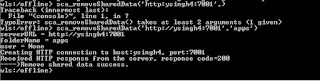
We can use Weblogic scripting tool (WLST) to delete this folder from MDS,
double click "wlst.cmd" inside C:\Oracle\Middleware\Oracle_SOA1\common\bin to start